AI Fundamentals
Set up Claude for the way you work
Learn how to choose your mode, model, folders, context, and permissions before you start working in Claude.
Key takeaways
- Understand Claude's models and working modes
- Give each project a folder and Claude the context it needs
- Decide what Claude can access and do before you start
Transcript
It's really easy to get started using AI. LLMs are a chat interface. You type in a question, you get a quick response. Because it's so easy, I found that many skip the step of setting up their Claude instance optimally.
Hi, I'm Nicole Khan, and I'm the VP of design at Carta. I also lead our change agents program, where I spend a lot of time on-site with our venture capital and private equity customers, helping them embed AI into their day to day work. This video is our setup guide. We're covering which version of Claude to use, how to organize your workspace, and three settings that matter before you build anything.
Start here. Download the Claude desktop app. That's where everything in this series lives. The Carta plugin, the workflows we'll build, the dashboards we'll create.
If you only do one thing after watching this video, it's that. Inside desktop, everything starts in one message box. Ask a quick question, brainstorm, or summarize a document. It's conversational.
Hand it something bigger and Claude independently executes multi step workflows, connects to Carta, and builds live dashboards and artifacts. You don't pick a mode. Claude works out what the job needs. That one box gives you the vast majority of Claude's capabilities, and it's very user friendly.
Once you bump into its limits, it makes sense to start using code. Claude code is where developers build software from writing and testing code to deploying it. It's powerful, but it's not where most fund operators spend their time. Claude was recently updated.
If yours still has chat and co work, here's how to use them. Chat is for quick questions. Co work is for multi step work, like everything in this series. Claude runs on a few different models and new models are added regularly.
Each model comes with associated costs. Haiku is the fastest and cheapest, ideal for quick brainstorms, summaries, simple lookups. SONNET is the default workhorse and handles everything most fund operators need. When building in CLODE, you should always start with SONNET.
Opus and Fable are for advanced software development. They use most tokens, are the most expensive. If you're not on a technical build team, you'll likely never need them. It is a misconception to think you'll get faster responses with Opus.
It's actually the opposite. If your prompts are well constructed, and we'll cover that in the next video, Sonnet does the job. Note that you can choose the model in the UI interface before starting a new task with Clog. Next step, let's set up your workspace.
Claude is programmed to work inside a designated folder on your computer while completing a task. It's how you tell Claude, work here in the kitchen, not in the basement. This is actually a feature, not a limitation. It keeps Claude focused on what you've given it.
So the best practice is we should have one top level folder. Let's call it AI projects. Don't name it Claude. That's a reserved word.
Inside that top level folder, one subfolder per project. Inside each project folder, a data input folder, which might be your reference data, the sample format you'd like to recreate, and an exports folder. That's where you want Claude to save all your outputs. Any new task, like creating an LP tear sheet, weekly cache report, each gets a new project folder under your AI projects top level folder.
The reason this matters connects to something we'll talk about next. But the short version, the less Claude has to sort through, the better it performs. Still with me? Good, because the next part is important.
Here's something most people don't know about Claude. Every session has a fixed token budget called the context window. I like to think of the context window as Claude's brain. It only has so much space per task.
And once you reach that upper limit of its capacities, its outputs diminish. Your prompt instructions, the documents you provide, Claude's responses all eat up that context window. It's finite. That's why you specify your working folder so you don't waste Claude's context window searching across folders for the files it needs.
Claude will compress context to be efficient, but that's usually a sign it's time for a new chat. Once the context is capping out, Claude starts to lose the thread, skipping details, making assumptions, drifting from your original instructions. Are four ways to manage your context one. Anytime you're starting something new, a new day or a new task or a new project, start a new session.
Don't carry yesterday's context into today's work. Two. If you see Claude automatically compressing, it's a sign, start a new session. We don't recommend you proactively compact your session.
Three, not sure if your context window is tapping out? Ask Claude, should I continue in the session or start a new one? If it tells you to start a new one, ask it to write a summary that you can paste into your new session so that you can pick right up where you left off. Four, manage the size of your input files.
Rather than giving it a 100 page document to read, start with a comprehensive summary. Claude can help you summarize your inputs. Pretty simple once you see it, right? Okay, two more settings and we're done.
When you install the Carta MCP, you will authenticate and connect. Accept all permissions at that step, you'll refine them after. Inside each Claude connector are settings. Every action has three permission levels.
Always allow, needs approval, and blocked. The golden rule, anything that writes, deletes, or sends externally stays on needs approval. If Claude is about to post something to your Carta ledger or send an email to an LP, you want to know about it before it happens. Read only actions like pulling fund data or running a query can go to always allow.
Okay, quick recap. Install the Claude desktop app first. Use Sonnet as your default model. Set up your AI projects folder with one subfolder per project.
Respect the context window. Give Claude only what it needs. Start fresh when you switch tasks, keep write and delete actions on needs approval. That's it.
Your workspace is ready. In the next video, we'll cover how to direct Claude with prompts that work the first time and how to turn them into workflows your whole team can run. When you're ready, click below.
- The Word Calculator: A new way to think about AI
 2:32The Word Calculator: A new way to think about AI2:32
 - Making sense of AI vocabulary
 5:01Making sense of AI vocabulary5:01
 - Set up Claude for the way you work
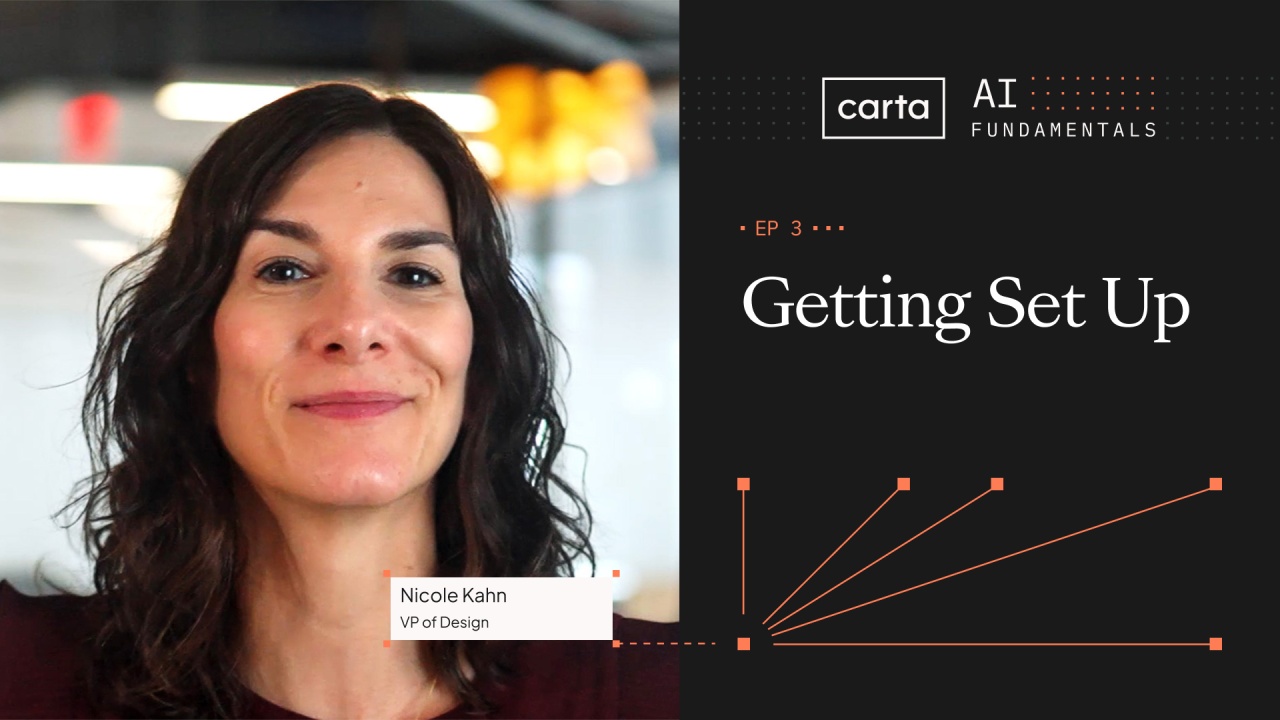 6:29Set up Claude for the way you work6:29
 - Prompts, skills, and repeatable workflows
 6:53Prompts, skills, and repeatable workflows6:53
 - Rethink how you work with Claude
 5:23Rethink how you work with Claude5:23
 - Run your fund with Carta in Claude
 10:11Run your fund with Carta in Claude10:11